Free Email Signature Generator (HTML with Templates)
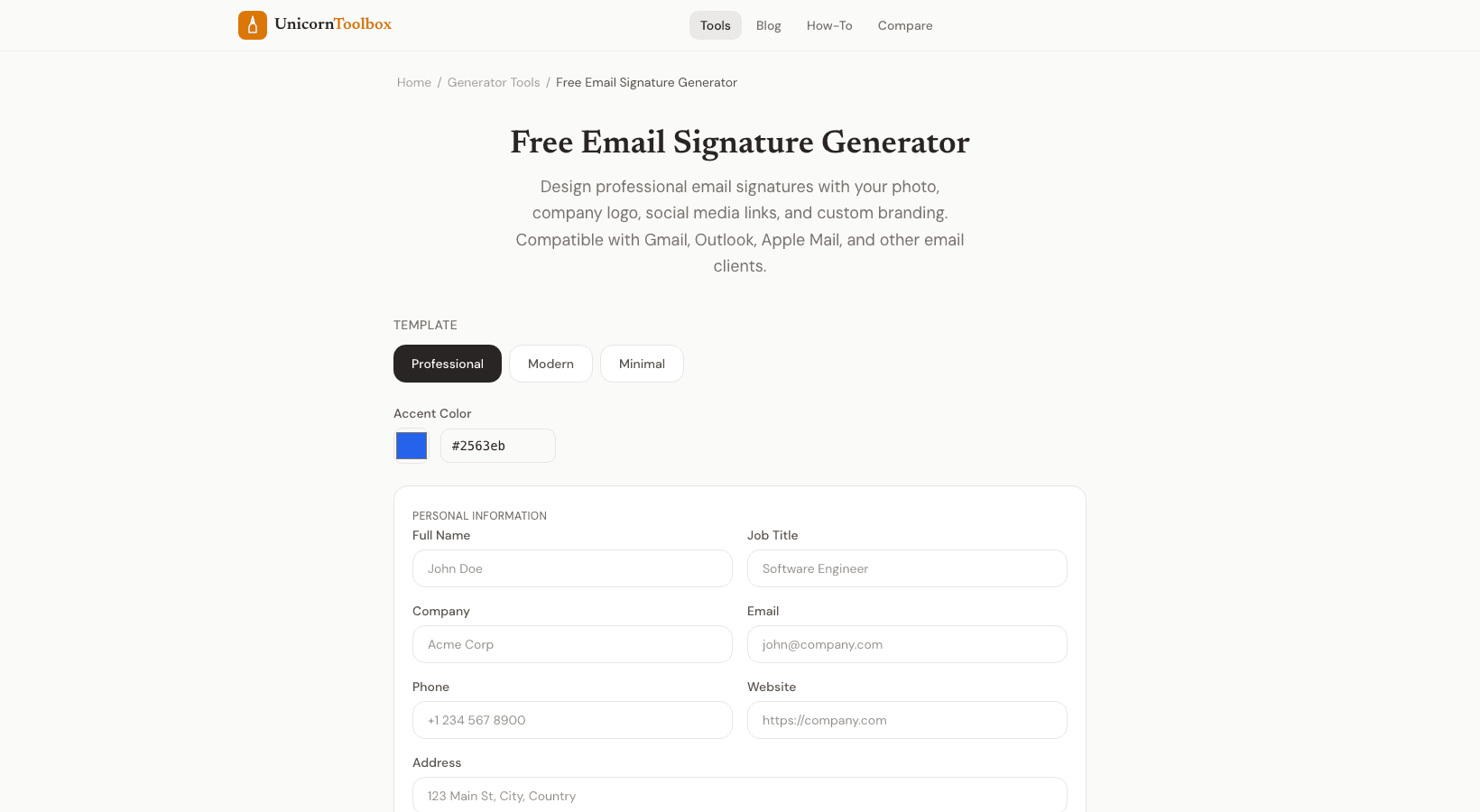
Your email signature says a lot about you. A plain text name at the bottom of your emails? Fine, but kind of forgettable. A clean, professional email signature with your photo, title, and social links?
That's how you make every email count.
Why Bother With an Email Signature
Think about how many emails you send per week. Each one is a tiny branding opportunity. A good email signature includes your name, role, company, and maybe a link to your website or LinkedIn. It makes you look put-together and gives people an easy way to find you online.
I used to hand-code my signatures in HTML, and honestly, it was a pain. Table-based layouts, inline styles, making sure it didn't break in Outlook — it took way longer than it should. That's exactly why an email signature generator is worth using. What You Can Customize The generator gives you several templates to start from, and then you can adjust everything: Your details — name, title, company, phone, email, website Profile photo — add a headshot or company logo (just paste the image URL) Social icons — LinkedIn, Twitter/X, Instagram, GitHub, Facebook, YouTube Color scheme — match your brand colors for the accent elements Layout — horizontal or vertical arrangement, with or without dividers The live preview updates as you type, so you can see exactly what your recipients will see.
Works With Every Email Client This is the tricky part about email signatures — what looks great in Gmail might fall apart in Outlook. The email signature generator produces battle-tested HTML that works across all major email clients. It uses inline CSS and table-based layouts (yes, it's 2026 and email still needs tables) so everything renders correctly. I've tested signatures from this tool in Gmail, Outlook desktop, Outlook web, Apple Mail, and Yahoo Mail.
They all look good. No weird spacing, no broken images, no missing social icons. How to Install Your Signature Once you're happy with the design, just click "Copy HTML" and paste it into your email client's signature settings. Here's the quick version for the big ones: Gmail — Settings → See all settings → Signature → paste Outlook — Settings → Mail → Compose and reply → paste into the signature editor Apple Mail — Preferences → Signatures → paste Takes about 30 seconds once you have the HTML copied.
Pro Tips Keep your signature under 4-5 lines of info. Nobody needs to see your fax number, mailing address, and a motivational quote all at once. Stick to the essentials: name, title, company, one phone number, and your top 2-3 social links. For images, host them somewhere permanent (like your company's website or a CDN).
If the image URL breaks, your signature gets a broken image icon — not a great look.