How to Convert PDF to Excel Spreadsheets Online
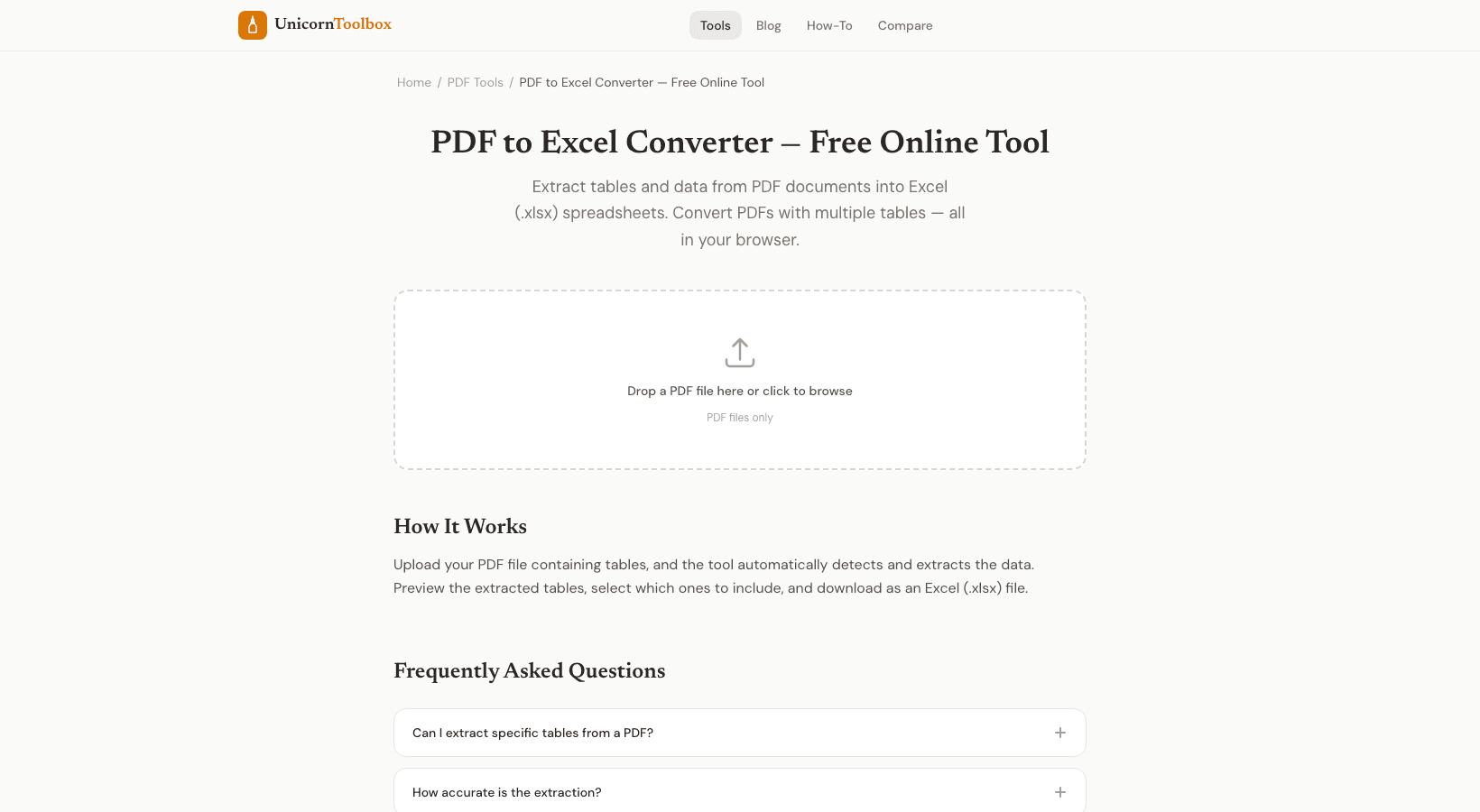
If you've ever been stuck with data locked in a PDF file, you know the frustration. Maybe it's a financial report from your accountant, an invoice from a vendor, or a spreadsheet someone sent you in PDF format instead of Excel. The good news is that converting PDF to Excel is easier than ever with modern online tools, and understanding how the process works can help you get better results.
PDFs are great for sharing information because they look the same on every device. But they're terrible for working with data. Excel lets you analyze numbers, create charts, apply formulas, and spot trends that are invisible in a static PDF. That's why converting your data over is worth the effort. Financial teams especially appreciate this because it cuts manual data entry time by over eighty percent and reduces costly errors.
So how does the conversion actually work? When you upload a digital PDF created by software, the converter reads the text directly since it's already in a machine-readable format. The tricky part is figuring out the table structure. The tool needs to understand which text belongs in which column and row, then reconstruct that layout in Excel. For scanned PDFs like old invoices or faxed documents, the tool uses something called OCR, or optical character recognition, which recognizes printed characters and converts them to editable text. Modern OCR systems are surprisingly accurate, hitting ninety-nine percent success rates even on complex multi-page documents.
Here's where things get messy. PDFs don't store information about merged cells, formatting, or the relationships between data. A converter has to make educated guesses about what's a header, what's a data row, and what's supposed to go where. Sometimes columns don't align perfectly, merged cells show up as extra blank columns, or text wraps across multiple lines in a single cell. Expect some manual cleanup. You might need to adjust column widths, unmerge cells, or reformat numbers and dates in Excel. The more consistent your original PDF, the less work you'll do afterwards.
To get the best results, start by identifying what kind of PDF you're dealing with. Try highlighting some text. If it selects easily, it's a digital PDF and should convert cleanly. If highlighting doesn't work, you're dealing with a scan that needs OCR. For scanned documents, use a quality OCR tool and know that security matters. Look for platforms that encrypt your files so your sensitive financial data stays private.
Online tools are convenient when your document is simple and you have an internet connection. But if you're converting complex multi-page tables with lots of merged cells repeatedly, you might want to explore desktop software that offers more control. For most people though, an online converter handles the job just fine and gets your data into Excel where it belongs.