How to Convert PDF to JPG Images Online
You might need a PDF page as a picture at times. Maybe you need to send it as a picture for a social media post, a presentation slide, or because someone asked you to. When you change a PDF to a JPG, each page becomes its own image file that you can use anywhere. I do this a lot when I need to get certain pages out of reports for slide decks or when I want to share parts of documents in chat where PDFs aren't easy to use.
When You'd Need This More situations than you might think: You can't post a PDF on Instagram, but you can post a JPG. Presentations: Add a PDF page to PowerPoint or Google Slides as an image. Messaging: sharing a document page in WhatsApp or Slack where images show but PDFs don't. Websites: showing document content as images on a web page.
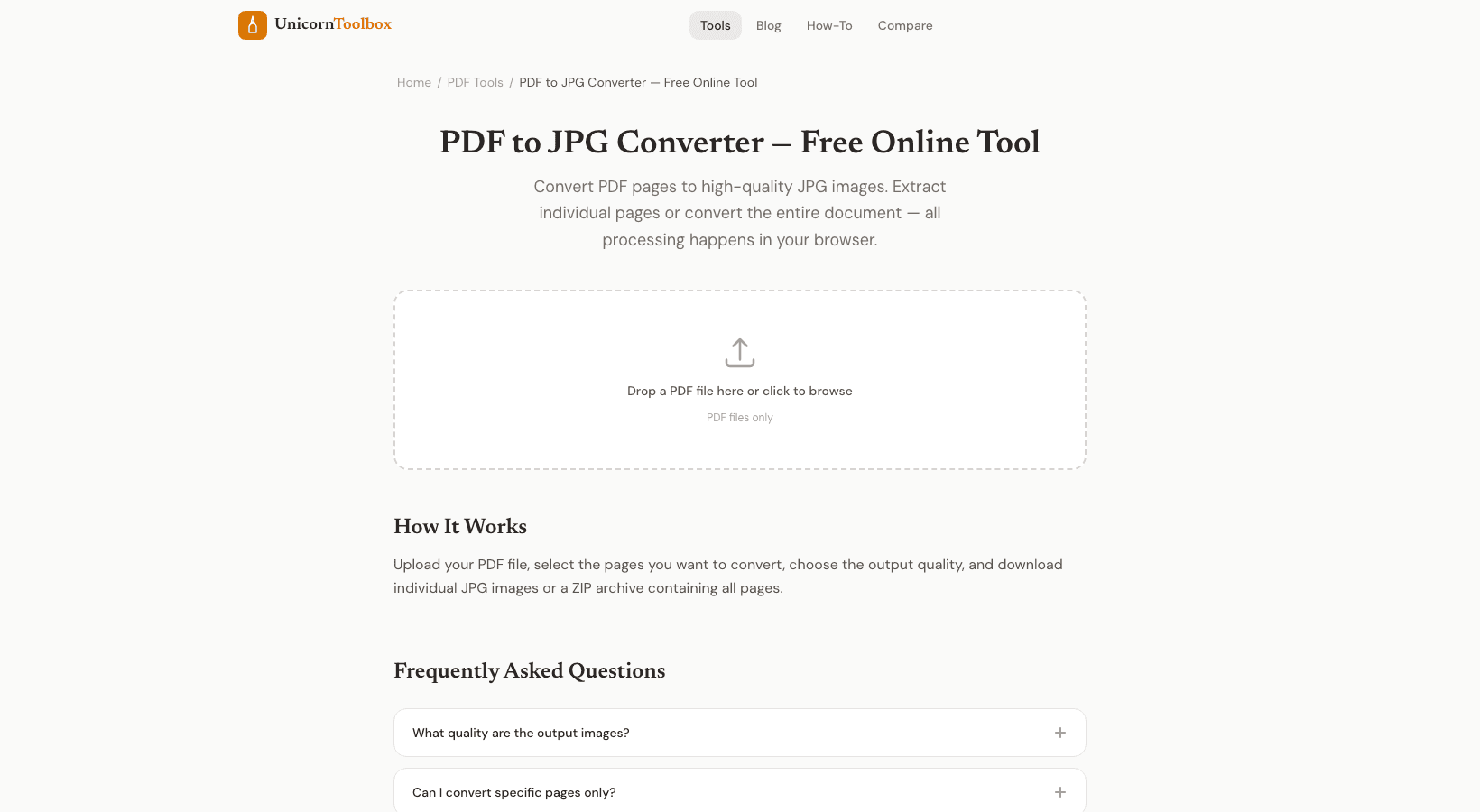
Thumbnails are small pictures of documents that show up in a file listing. How to Change a PDF to a JPG Put your PDF file online. The tool lets you see a preview of each page. Choose all the pages or just the ones you need.
Pick the quality of your output (higher DPI means sharper images and bigger files). Click "convert" and then download your pictures. If you have a multi-page PDF, you'll get a zip file with one JPG for each page, with the names of the files in order. Neat and tidy.
Quality Settings Are Important You can choose the resolution with this tool. 150 DPI is fine for using screens (like social media, websites, and presentations). For printing, use 300 DPI. Unless you're doing professional printing, higher than that doesn't matter very often. A single PDF page at 150 DPI usually makes a JPG that is between 200 and 400 KB.
Pages will be between 500KB and 1.5MB at 300 DPI. Depending on how you plan to use it, you should think about the trade-off between quality and file size. Output in JPG vs. PNG JPGs are smaller and work well for pictures and pages with gradients.
PNG files are bigger, but they keep text and diagrams sharp. PNG might be the better choice if your PDF is mostly text and you want clear output. JPG is the best format for pictures or everyday use. You can choose between the two formats that the PDF to image converter supports.
Your files stay private because everything happens in your browser.