How to Convert Word to PDF Online Free
You just finished writing a report, a resume, or a proposal in Word, and now you need to send it as a PDF. You could fiddle with Word's built-in "Save as PDF" option, but what if you're on a machine that doesn't have Word installed? Or the formatting comes out weird? A free online Word to PDF converter handles this cleanly.
Why Convert to PDF?
PDFs look the same on every device. That's the whole point. A Word document can shift its formatting depending on what fonts are installed, what version of Word someone has, or whether they're opening it on a Mac vs. PC. I've sent Word docs that looked perfect on my screen and arrived looking completely different on the recipient's end.
PDFs don't have this problem. What you see is what everyone sees. That's why contracts, resumes, invoices, and formal documents are almost always shared as PDFs.
What Gets Preserved
The Word to PDF converter keeps everything intact during the conversion:
- Formatting — Headers, footers, margins, spacing, indentation, columns
- Fonts — Your chosen fonts get embedded in the PDF, so they display correctly even if the recipient doesn't have them installed
- Images — Photos, charts, diagrams, and graphics stay in place and maintain their quality
- Tables — Cell borders, shading, merged cells — all preserved
- Hyperlinks — Clickable links in your Word doc remain clickable in the PDF
How to Use It
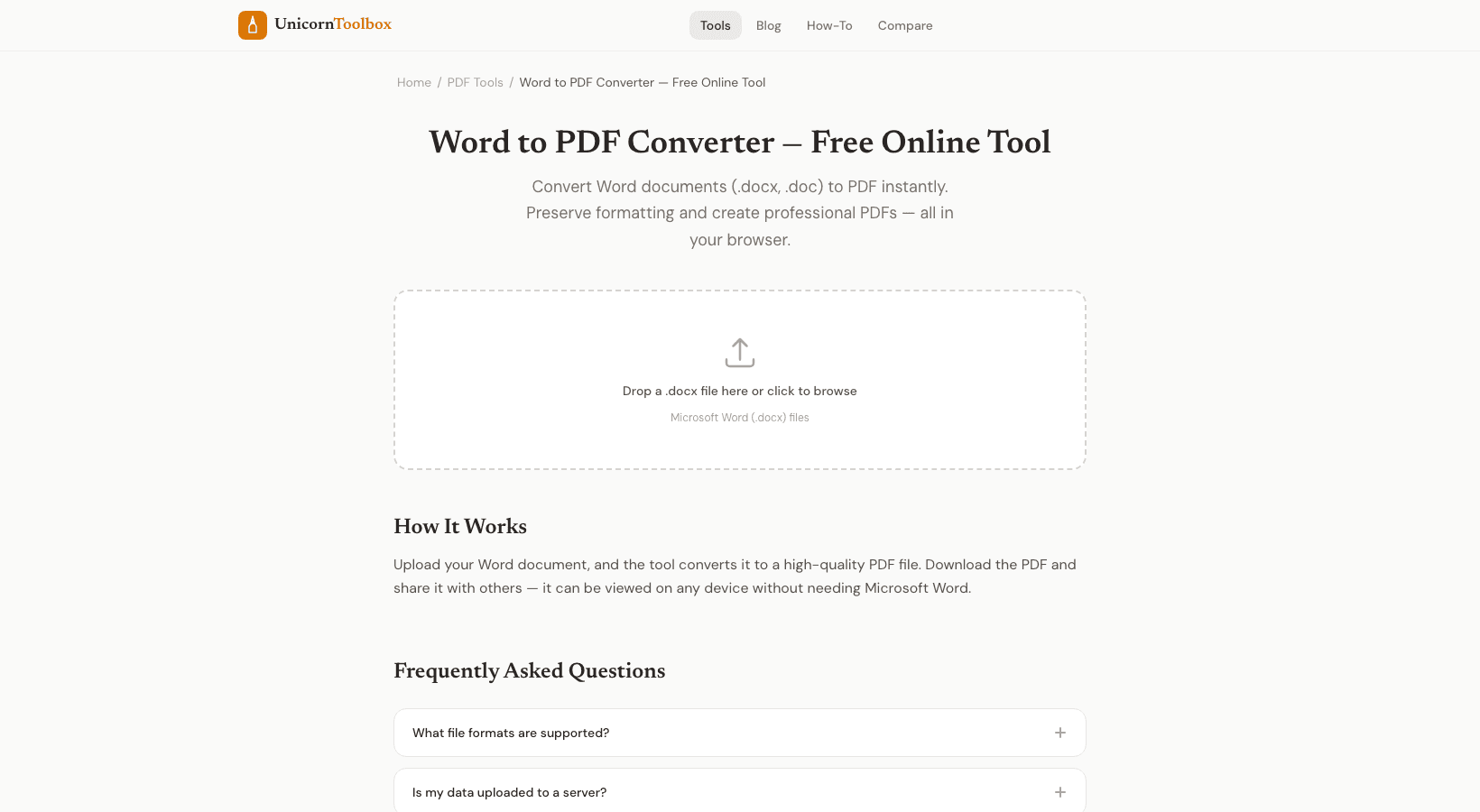
Upload your .doc or .docx file (drag and drop works too), and the tool converts it in a few seconds. Download your PDF and you're done. No account, no watermarks, no page limits.
I use this mostly for resumes and client proposals. The formatting stays exactly how I designed it, and I don't have to worry about whether the recipient has the same version of Word.
When to Use This vs. Word's Built-In Export
If you have Word installed and the export works fine, use that. This tool is best when you don't have Word available (maybe you're on a Chromebook or a shared computer), when Word's export is producing weird results, or when you want a quick conversion without opening a heavy application.
It's also handy for batch situations — need to convert a folder of Word docs? Faster to drag them here than open each one individually in Word.
Privacy Note
The conversion happens in your browser, so your documents don't get uploaded to any external server. Your files stay on your machine the whole time. That matters when you're working with confidential documents, contracts, or anything you wouldn't want floating around on someone else's server.