How to Create Charts From Data Online Free
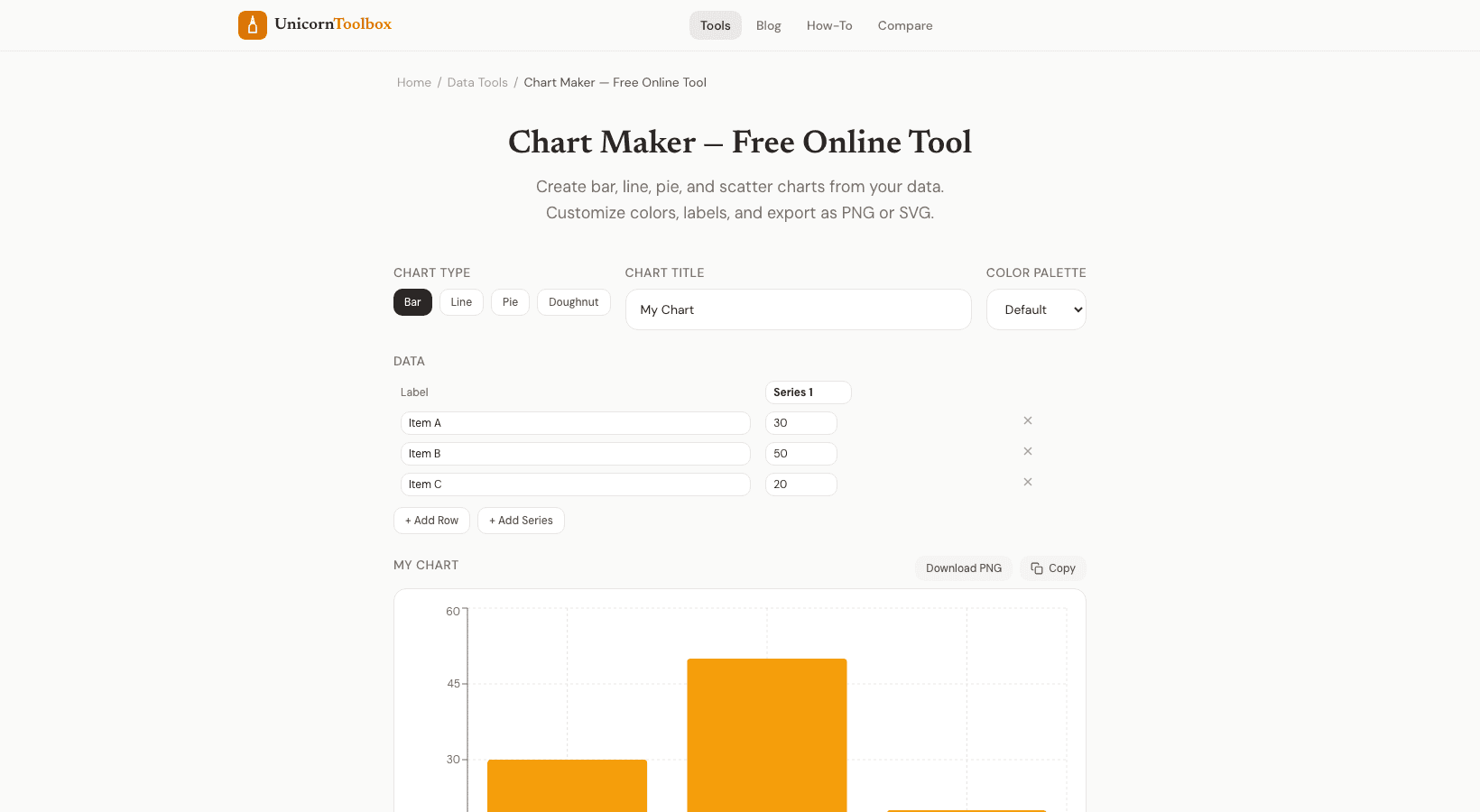
You've got data, and you need it in a chart. Maybe for a presentation, a report, a blog post, or just to make sense of what the numbers are telling you. The chart maker turns raw data into good-looking charts in about 30 seconds — no Excel gymnastics required.
Chart Types Available
The tool supports all the chart types you'll actually need:
- Bar charts — Horizontal or vertical. Best for comparing categories side by side (sales by region, survey responses by option).
- Line charts — Perfect for showing trends over time (revenue by month, temperature over a week, user growth).
- Pie charts — Show parts of a whole (budget allocation, market share, traffic sources). Use sparingly — pie charts are best with 5 or fewer slices.
- Scatter plots — Show relationships between two variables. Great for spotting correlations in data.
- Area charts — Like line charts but filled in. Good for showing volume over time.
- Stacked bars — Compare categories while showing composition within each category.
Getting Your Data In
Paste your data from a spreadsheet, type it in manually, or upload a CSV file. The tool is pretty smart about detecting your data format — it handles tab-separated, comma-separated, and space-separated values. Column headers become your labels automatically.
I usually just copy a range from Google Sheets and paste it right in. The chart appears instantly with a reasonable default design that I can then tweak.
Customization Options
This is where the chart maker stands out from just screenshotting an Excel chart. You get control over colors (individual bar colors, gradient fills, custom palettes), labels (axis titles, data labels, legend position), and styling (grid lines, border radius on bars, line thickness).
The output looks clean and modern by default — more like something from a design tool than a spreadsheet. I've used these charts directly in client presentations without any cleanup in Illustrator or Figma.
Export Options
Download your chart as PNG (for slides and web) or SVG (for print and further editing in design tools). The PNG export lets you set the exact resolution — bump it up to 2x or 3x for retina-quality images. SVG gives you a vector file you can scale to any size.
When to Use This vs. Excel
Use this when you need a good-looking chart fast and don't want to fight with Excel's formatting. It's also great when you need an image file rather than an embedded spreadsheet chart. For complex data analysis with pivot tables and formulas, stick with Excel. For visual output, this tool is faster and looks better out of the box.