How to Extract Text From Images With OCR Online
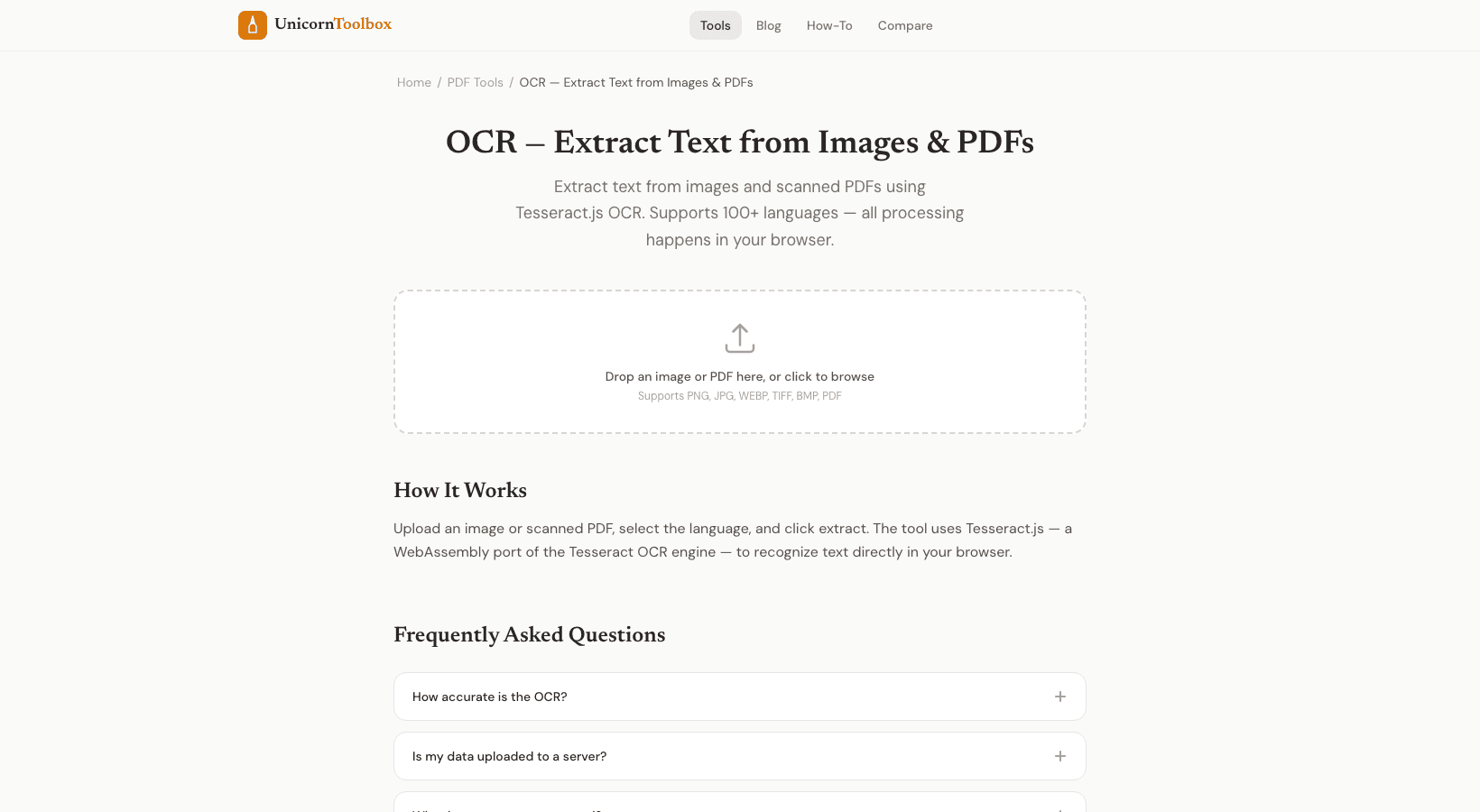
You have a screenshot of a table, a picture of a whiteboard, or a PDF file with text that you need to copy. You can't choose the text, though, because it's an image. This is what OCR (Optical Character Recognition) is for: it reads the text in pictures and gives you text that you can edit and copy. I use OCR almost every week.
Sometimes it gets information from a screenshot of a spreadsheet that someone sent me. Other times, it's taking text from a contract that has been scanned. In either case, you can't type everything out by hand when there's a tool that does it in seconds.
What can OCR do
Modern OCR works surprisingly well. It goes well with: Screenshots show text from apps, websites, error messages, and chat conversations. Pictures of papers like invoices, receipts, business cards, and printed text Scanned PDFs are old documents that were scanned and turned into images. Photos of whiteboards with meeting notes and diagrams with text labels Book pages—pages you want to digitize that have been photographed or scanned It works great with printed text.
Writing by hand is harder; neat handwriting is fine, but messy cursive will give you different results. How to Get Better OCR Results The quality of what you get out of your computer depends a lot on the quality of what you put into it. A few things that really matter are: Good light and dark. The best way to write is with dark text on a light background.
Straight alignment. Text that is tilted or skewed makes it less accurate. Good resolution. OCR will have a hard time too if you can't read the text yourself.
Clear backgrounds. Patterns that are busy behind text make it hard for the recognition engine to work. Privacy Is Important Our OCR tool runs completely in your browser, which is important. Your pictures never go to a server.
Your device's processing power does the text recognition on its own. This is very important when you are dealing with private documents like contracts, medical records, or financial statements. Most online OCR tools send your files to their servers so they can be processed. That might be okay for a random screenshot, but not for private business papers.
Common Uses for OCR The most useful ones I've seen are taking data from receipt photos for expense reports, changing scanned documents into text that can be edited, taking text from screenshots for documentation, and turning old printed documents into digital files. Put your picture into our OCR tool, and in a few seconds, you'll have text that you can copy. No need to sign up, upload files to a server, or worry about file size limits.